
Locking management software FAQs
(I)How to setup the locking software and database in Windows7, windows8 and Windows10

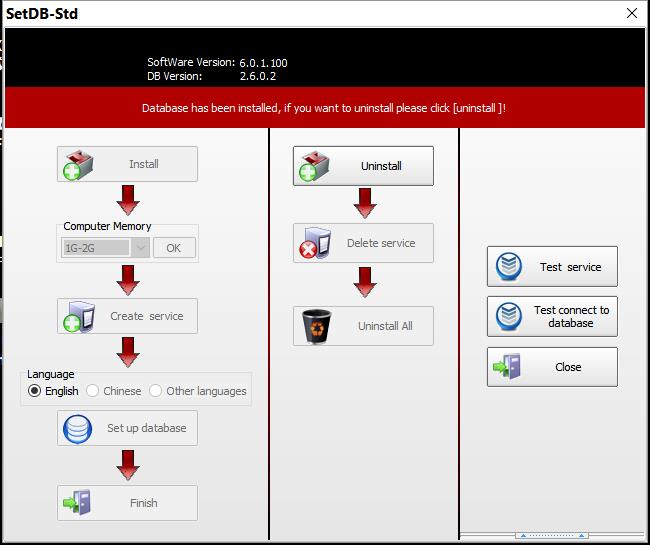
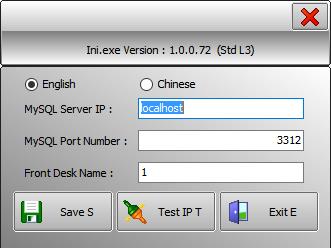
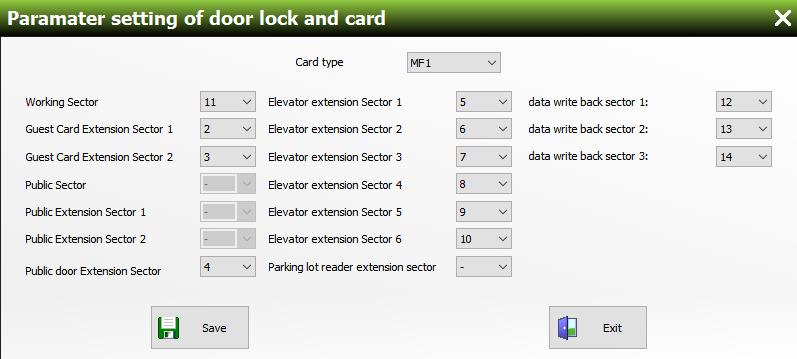
- Working Sector:11;
- Guest Card Extension Sector 1:2;
- Guest Card Extension Sector 2:3;
- Public Sector:leave it blank;
- Public Extension Sector 1:leave it blank;
- Public Extension Sector 2:leave it blank;
- Public door Extension Sector:4;(if blank, MAX public door amount is 120;if enabled, MAX public door amount is 480.)
- Elevator extension Sector 1-6:choose "5-10"(if there is no elevator access controller,then leave them blank;
- Parking lot reader extension sector:leave it blank;
- data write back sector 1-2:choose 12-14 (These 3 sectors is used to write the recent 6 pieces record from electronic door lock or access reader to key cards. If they are enabled, card reading speed will be slightly slow down. So if user does not use this function, just leave them blank);
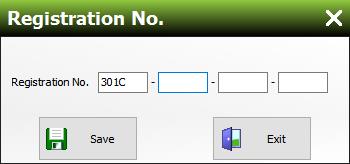
Step 7:input software registration code (SN) which is offered by JK Tech;
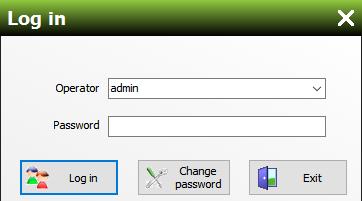
Step 8:log in software. default operator: admin, default password:empty (user can reset password later);
(II)How to enable communication port for MySQL database in Windows7, windows8 and Windows10
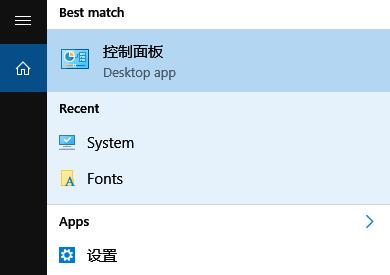
Step 1:go into control panel;
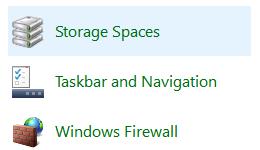
Step 2:left click icon "Windows Firewall";
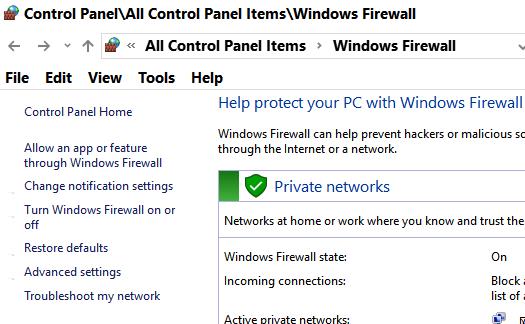
Step 3:Turn on Windows Firewall by selecting option "Turn Windows Firewall on or off";
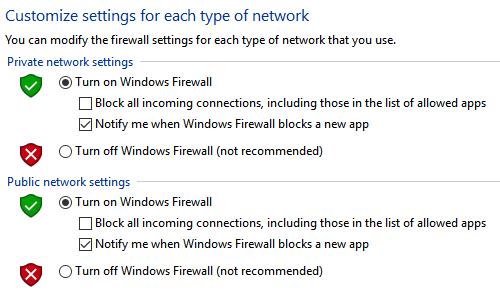
Step 4:Turn on Windows Firewall for "private network setttings" and "public network settings" as illustration above;
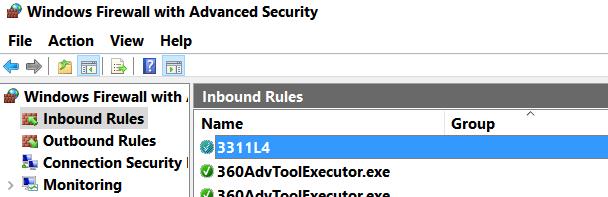
Step 5:left click “Advance Settings” to set up inbound and outbound rules;
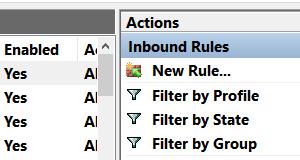
Step 6:left click “Inbound Rules” -> left click "New";
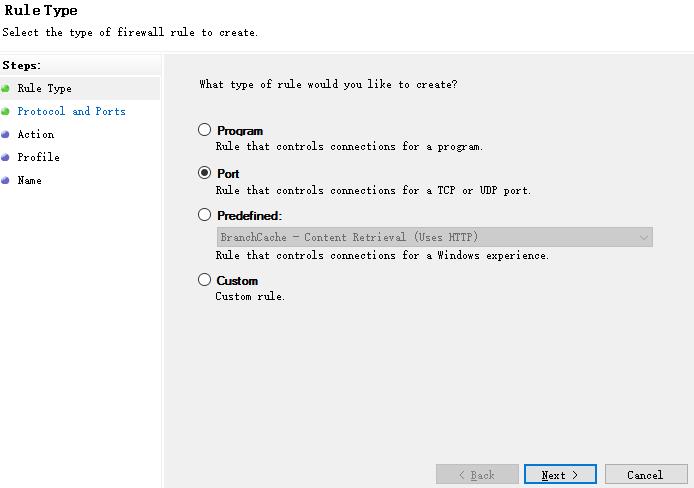
Step 7:select radio button "Port" -> click "Next";
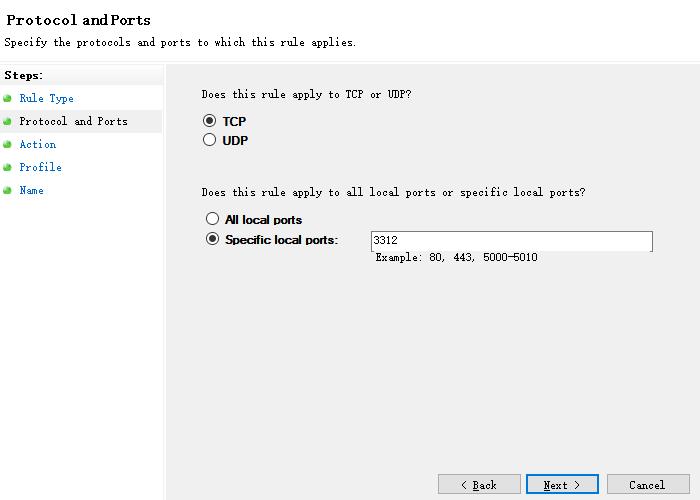
Step 8:select radio button "TCP" -> select radio button "Specific local ports" -> fill in "3312" if for L5 software ; fill in "3311" if for L4 software;
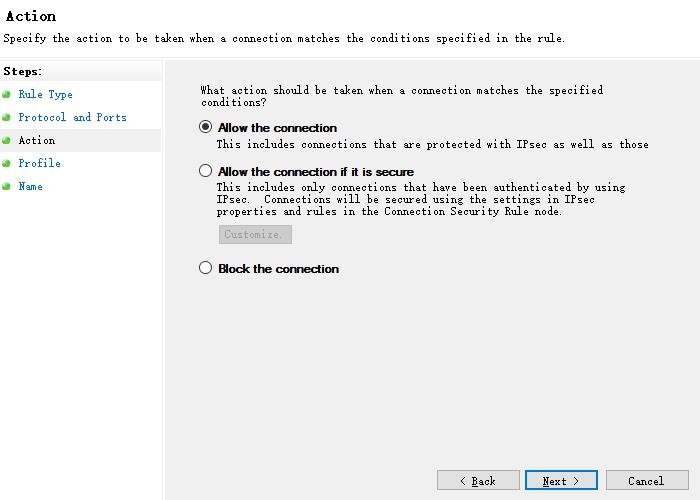
Step 9:select radio button "Allow the connection" and press Button "next";
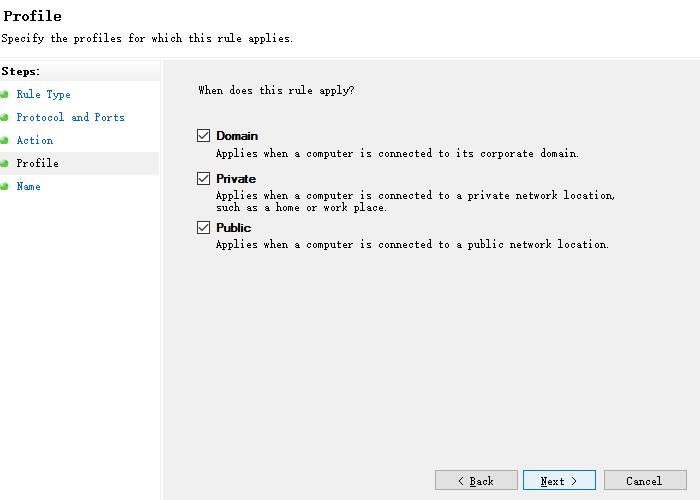
Step 10:tick all checkboxes and press Button "next" as illustration above;
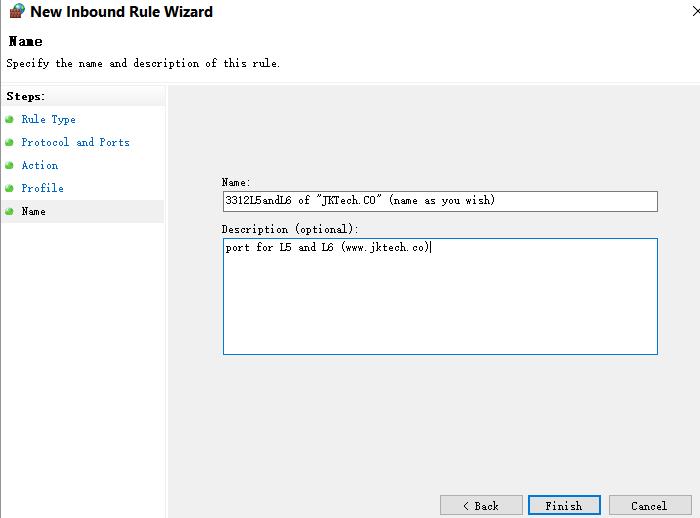
Step 11:fill name and description, for instance 3312 L5;

Step 12:finally a new rules is shown on the box of inbound rules -> repeat Step 5 to enable the outbound rules fill in port number "3312" for L5 software ; fill in port number"3311" forL4 software;
(III)Solution for failing to create database service
- 1. Whether login in operation system with administrator
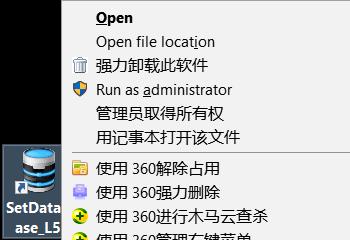
- 2. After login in operation system as administrator, right click icon "SetDatabase", click "Run as Administrator"
- 3. If service still cannot be created, please check
->Control Panel
->System Security
->Administrative Tools
->Computer Management
->Local User and Groups
->User
->find out "Administrator"
->right click
->Property
->make sure "Account is disable" SHOULD NOT be selected - 4. After enable Admin account, please check
->Control Panel
->System Security
->Administrative Tools
->Computer Management
->Service
->DBserver_4 (or "DBserver_3" / "DBserver_5" depending on software version)Right click it
->click "Start" - 5.If user fail to create service before, then uninstall it and reinstall it again.
steps:
->right click icon "SetDatabase"
->click run as administrator
->click uninstall and delete service. DO NOT click "uninstall all" !
->After successfully deleted service, close SetDatabase. And then reopen it and reinstall it from beginning. - 6.If fail to uninstall successfuly,then user has to remove the services of database
completely.Steps:
->Login as Admin, [Start]>>[Run]
->Input "cmd"
->Input "sc delete DBserver_L4"(or "sc delete DBserver_L3" / "sc delete DBserver_L5" depending on software version)
->Create service again
(IV)Quick tips to use locking management system
1.Locking management system comprises those components as following:
- a. RFID card locks (quantities = guest room and public door) and good quality AA batteries*4 (customers should purchase them locally) for each lock --- to open the door
- b. Wall reader (optional component) --- normally it will be installed on the public door.
- c. USB Key card encoder|Reader|Writer (one for each front desk PC ) --- to issue all kinds of cards
- d. Key cards (quantities = 5 times as much as the amount of guest rooms) --- to open the door lock / pass
- e. Handheld terminal PDA(one per hotel,
optional component) --- to get the time of locks or access readers;
to set the time into locks or access readers; to program the locks or access reader as installation card; to get the firmware information from locks or access readers; to get the open record / trail audit from locks or access readers - f.USB dongle|soft dog --- a key to run locking management software as double security
- d.Locking management software --- to manage whole locking system. (English and Chinese version available, other languages have to be translated by local customers)
2.to confirm handle back set and door thickness and door open direction:
- Adaptive door thickness:25mm to 65mm for M3/M3P mortise(back set=60mm); 35mm to 65mm for M1/M1P
mortise (back set=70mm)
3.to precisely install the lock and strike plate/strike box based on hole making template / fitting template
4.Three major procedures to start
- Procedure 1: to do the settings in the locking management software.
- ->Install hotel management software with valid registration code;
- ->Make a new authorized card and mark it with a sticker. This is the most important
management card. Please do not lose it;
- ->Create hotel buildings and rooms.
- ->Set room type and do the room settings;
- Procedure 2: to program locks and set initial information into locks or access reader
- -> Download room and building structure basic information to hand held terminal PDA(Not necessary step. If you do not have this device, skip this
step!)
- -> Issue installation cards for each room and each public door from locking management
software;or set the hand terminal as installation cards issuer.
- -> Swipe authorized card and then swipe installation card on each lock, therefore, then room
basic information is set into the locks or access readers.
- -> Issue a clock card from locking management software (notice:the time in the clock card is
fixed which cannot move as real time goes by, so we must do the following step as soon as
possible);or set the hand terminal as clock card mode (the time in hand terminal can go as
real time).
- -> Swipe authorized card and then swipe clock card(or via hand terminal) on each lock,
therefore, the time is set into the locks or access readers.
-
Procedure 3: to issue guest card with start time (check-in time) and end time (departure time)
when check-in; to clear card or check-out without card when check-out via front desk PC /
Reception Desk.
Related key card lock product
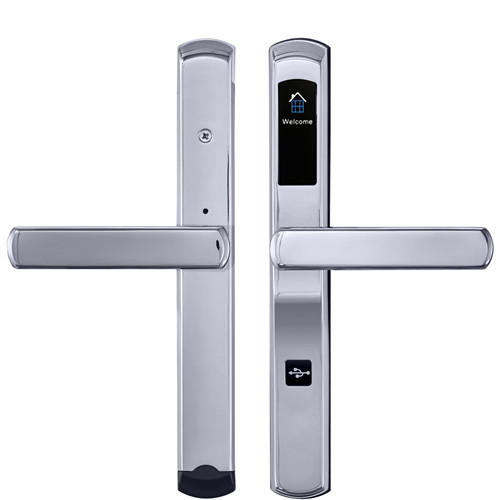
slim SS key card lock
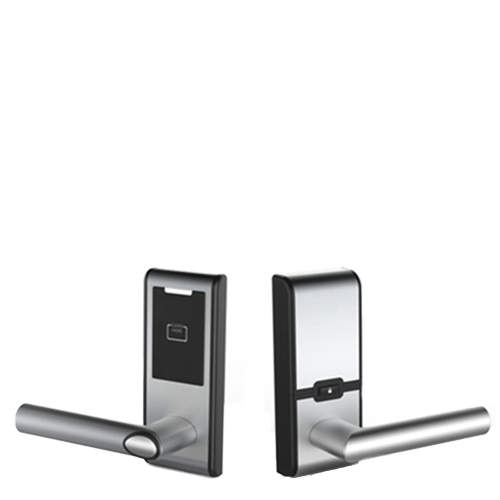
retrofit SS cylindrical lock
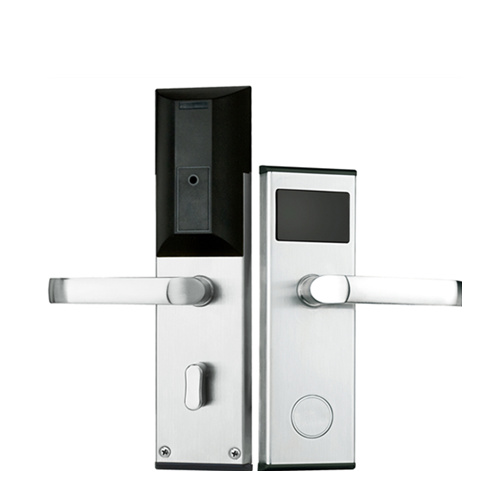
classic durable key card lock
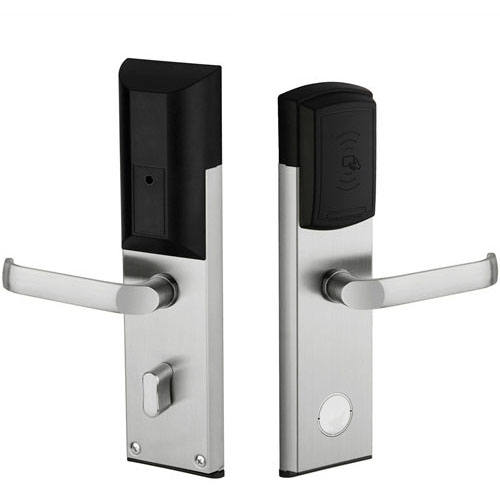
retrofit SS key card lock
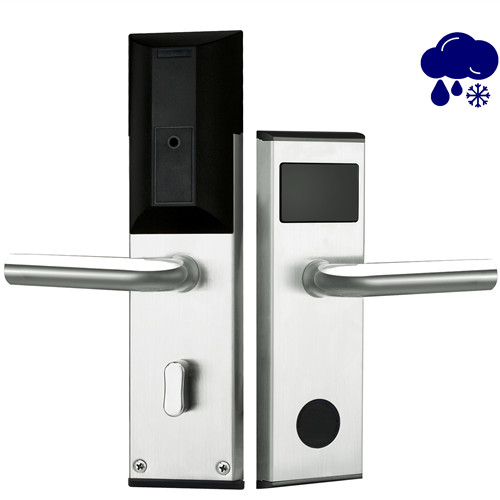
waterproof SS contactless card lock
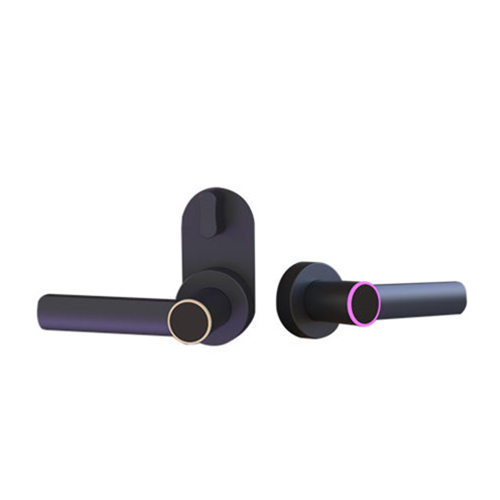
handle-only keycard lock
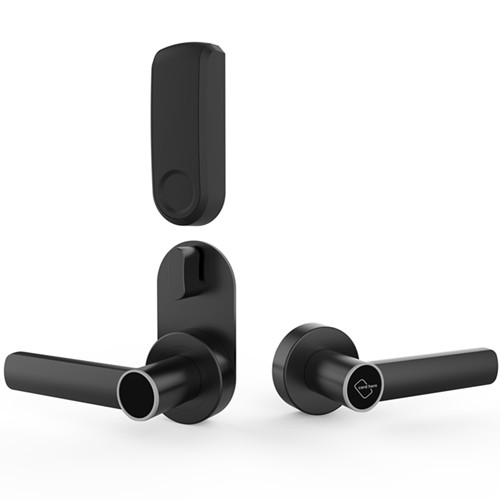
alternative lever-only keycard lock
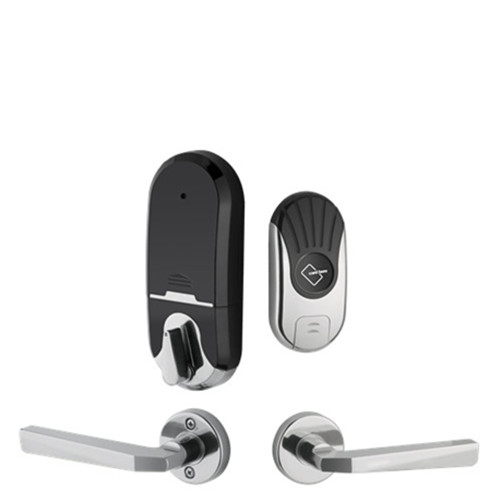
split style hotel card lock
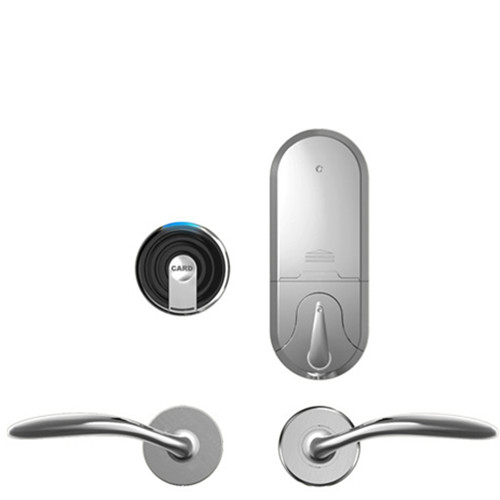
alternative split style card lock
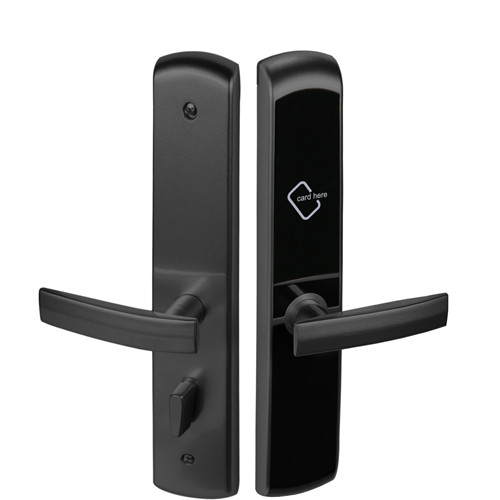
aluminum keycard door lock
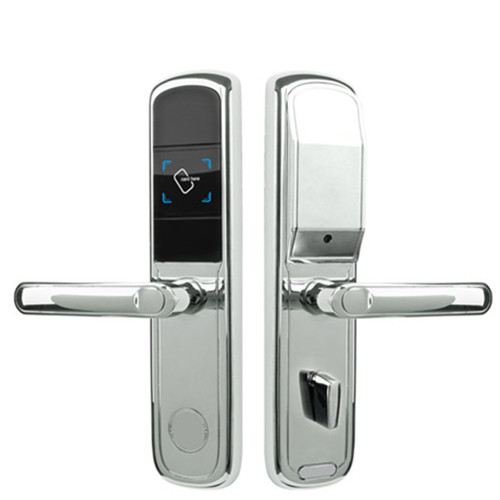
low cost smart lock
-

Skype
-

WhatsApp